
There is a lot to say about the theory behind data binding and the types of patterns you can use in developing with a UI that supports data binding. This is not going to address all of that, but I do suggest looking into the MVVM pattern. Data binding with the Layout Toolkit has two main components and there are a couple of supporting classes in the package.
Bindable  The Bindable component allows an object to have a Data Context. The Data Context is where any data binding gets its data from and is required for data binding to work. In the inspector it can be set to objects in the scene, or it could be set in code behind to any class. This is the source of data for data bindings.
This should be on most of the objects in your UI hierarchy even if a particular object does not have a data binding of its own. If the Data Context is null (not set) for a given object, it will look to its parent for a data context. This bubbles up the hierarchy until there isn’t a Bindable component. This means that many times the data context only needs to be set once, at the top most Bindable.
Certain components, like ItemsControl or UIStateManager, will take care of automatically setting the data context on their children.
DataBind 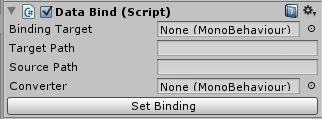 DataBind will set a property or field on a target to the value of a property or field on the data context. If the data context implements INotifyPropertyChanged it will keep the target field or property up to date whenever the property on the data context changes. If the target implements INotifyPropertyChanged, the binding will update the data context when the target changes. The “Set Binding” button can be used to make the binding work in edit mode after the necessary fields have been filled in. The main reason for this is to prevent lots of error messages while setting the fields in the inspector.
- Binding Target (required): The object with the property or field you want the binding to set. Some example targets are UILabel, ItemsControl, or CommandButton.
- Target Path (required): The name of the field or property on the BindingTarget to set. Example paths for the example targets could be “text”, “Items”, or “Command” respectively.
- Source Path (required): The name of the field or property on the data context to get the value of. Both this and TargetPath support dot notation, which means you can put in a path to a variable just like you would in code. For example, if your data context is a Transform, the SourcePath could be set to “gameObject.name” to have the target get set to the name of the data context object.
- Converter: this should be set to a component that implements ValueConverter (see below.) When the source data type on the data context does not match the target data type a value converter can be used. For example, if a control should have visibility set to false when the Length of an Array is 0, you could use a converter to convert the ‘0’ to ‘false’.
ValueConverter
ValueConverter is an abstract class that can be inherited from to provide conversions in data binding. It inherits from MonoBehaviour, so the usage is to implement ValueConverter and attach it to objects that have a DataBind component that will be using the ValueConverter implementation. ValueConverter has two methods:
- Convert: this will be called any time data is being taken from the data context and being set on the target. After getting the data from the data context DataBind will call Convert on its converter and use the result when setting the field or property on the target.
- ConvertBack: this is called whenever data is taken from the target and set on the data context. Just like convert, it will be called after getting data from the target and the result will be used when setting the field or property on the data context.
ViewModelBase
This class currently just implements INotifyPropertyChanged. It is a shortcut to inherit from this instead of implementing INotifyPropertyChanged for every class that will be a data context.

